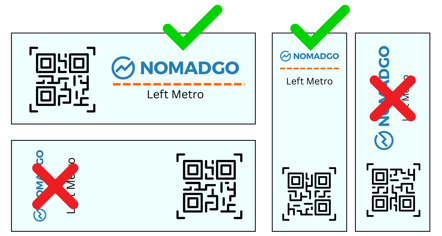
Step 1: Open the Location Menu
Before scanning make sure the storage unit follows the Inventory Basics guidelines.
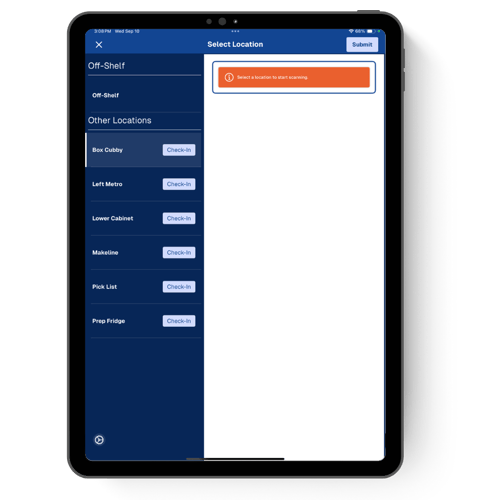
- Tap on the desired job to open the Locations Menu.
- Select Check In on a location, or tap the X in the top-left to open the camera view. follow the on-screen prompts for check-in method.
 |
Troubleshooting Tip: Select the wrong location? Swipe the Done slider at the bottom of the screen then tap the Location Tracker icon to exit. Don’t forget to come back and finish the location! |
Step 2: Follow the on-screen prompt
- Hold the device steady and parallel to the shelf.
- Focus the viewfinder on the QR Code at a close distance – get within 6 inches of the QR Code.
- A green label will appear when check-in is successful.
Quick List Locations
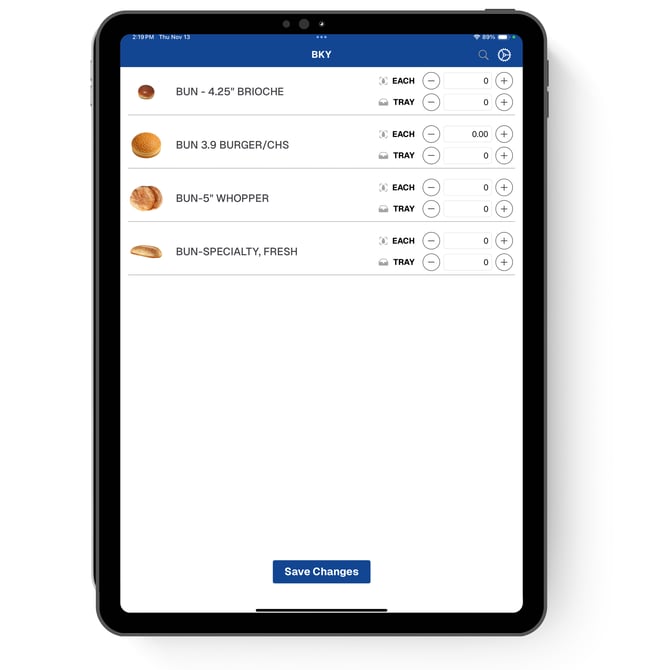
When you tap Check In on a Quick List location, a pre-loaded list of items will load on screen. Enter the quantities for all listed items, then tap Save Changes to record them in your counts.
|
Troubleshooting Tip: Make sure the NomadGo logo on your QR Code label is right-side up. If you can't read it, neither can the device. |
|