Actions to take before every count
The first thing you will do before every count is ensure products follow the Inventory Basics guidelines.
Open the NomadGo App from your device
Upon opening, the app will prompt you to login. You'll enter on the Start Screen
Here, you will see:
- A Settings Gear Icon
- Your Company and Store details*
- Your Job Templates- these could be Daily, Weekly, or monthly. Select the one that applies to the count you're about to perform.
.png?width=500&height=500&name=Untitled%20design%20(7).png)
* If these details are incorrect, reach out to the Support Team immediately.
Settings Menu
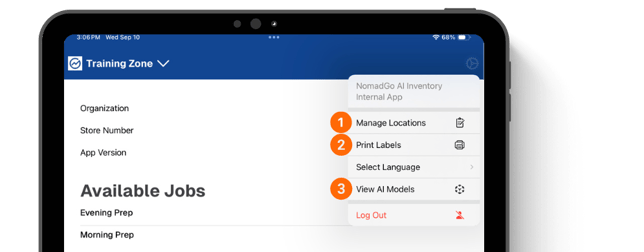
The App Settings Menu can be opened by tapping the cog in the top-right corner. Here, you can modify basic settings like selecting a language or logging out of the app.
Refer to the Store Setup guide for more information about using the Manage Locations and Print Labels options in this menu.
- Manage Locations: Create and manage storage location details
- Print Labels: Print QR Codes and/or Product Labels
- View AI Models: Verifies all updates have downloaded properly